Found a space that works for you? Booking takes just a few minutes. Here's what the process looks like from start to finish.
Before you book
Make sure you have a Booquela account. If you don't have one yet, registration is quick - just an email and password.
Step by step
1. Find a room
Use the search on the homepage. Choose a city, browse results, visit a studio page, and pick the room that suits you.
2. Select date and hours
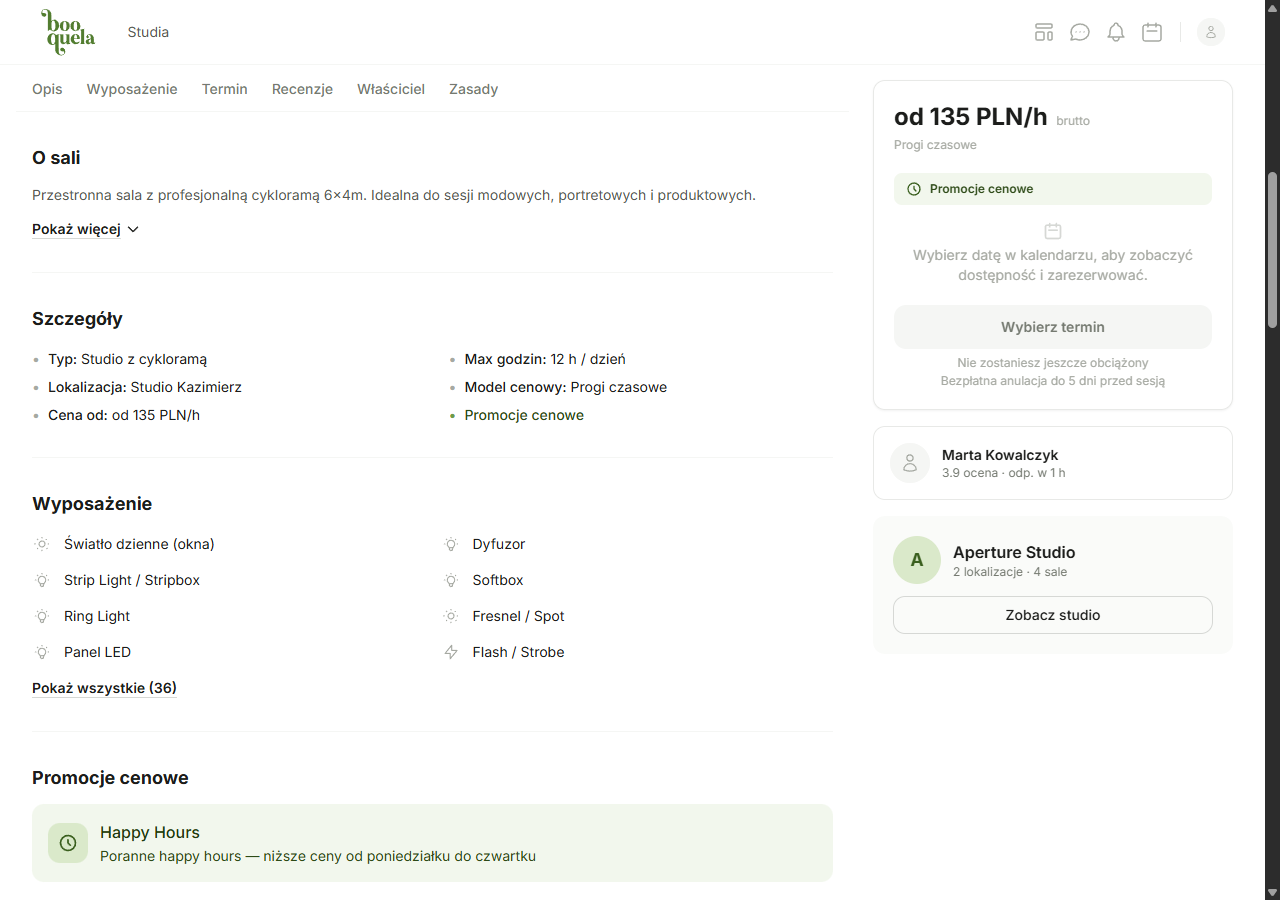
On the room page you'll see a calendar. Click a date, then select the hours - e.g., 10:00, 11:00, 12:00 for a three-hour session. Green slots are available, gray ones mean the hour is booked or blocked.
3. Add extras (optional)
If the studio offers additional equipment or services (e.g., lighting, backdrops, an assistant), you can select them in the form. You'll see the cost of each extra right away.
4. Review the summary and pay
Before payment you'll see a full summary - the room price, extras costs, and Booquela's service fee. You pay by card through Stripe's secure form.
What happens after booking?
- You receive a confirmation email with studio details
- The booking appears in your My Bookings tab
- You'll get a reminder 24 hours and 2 hours before your visit
Some studios use "instant booking" mode - your booking is confirmed right away. Others require the owner's approval, which usually takes a few hours. You'll find the booking mode info on the room page.
What if you pick the wrong date or hours?
If you realise right after booking that you selected the wrong time - cancel the booking (cancellation rules are set by each studio) and make a new one for the correct time. You can also message the studio to discuss a change.
Do I need an account?
Yes - you need to be logged in to book a room. This gives you access to your booking history, messages with studios, and session reminders. Registration is free and takes just a few seconds.
Was this article helpful?
What could we improve?
Thanks! Your feedback will help us improve this article.