The bookings list is where you'll find all bookings in your studio - from those awaiting approval, through confirmed ones, to completed and cancelled.
Where to find it
Go to Owner Panel -> Bookings. You'll see a table with all bookings, sorted from newest.
Filtering bookings
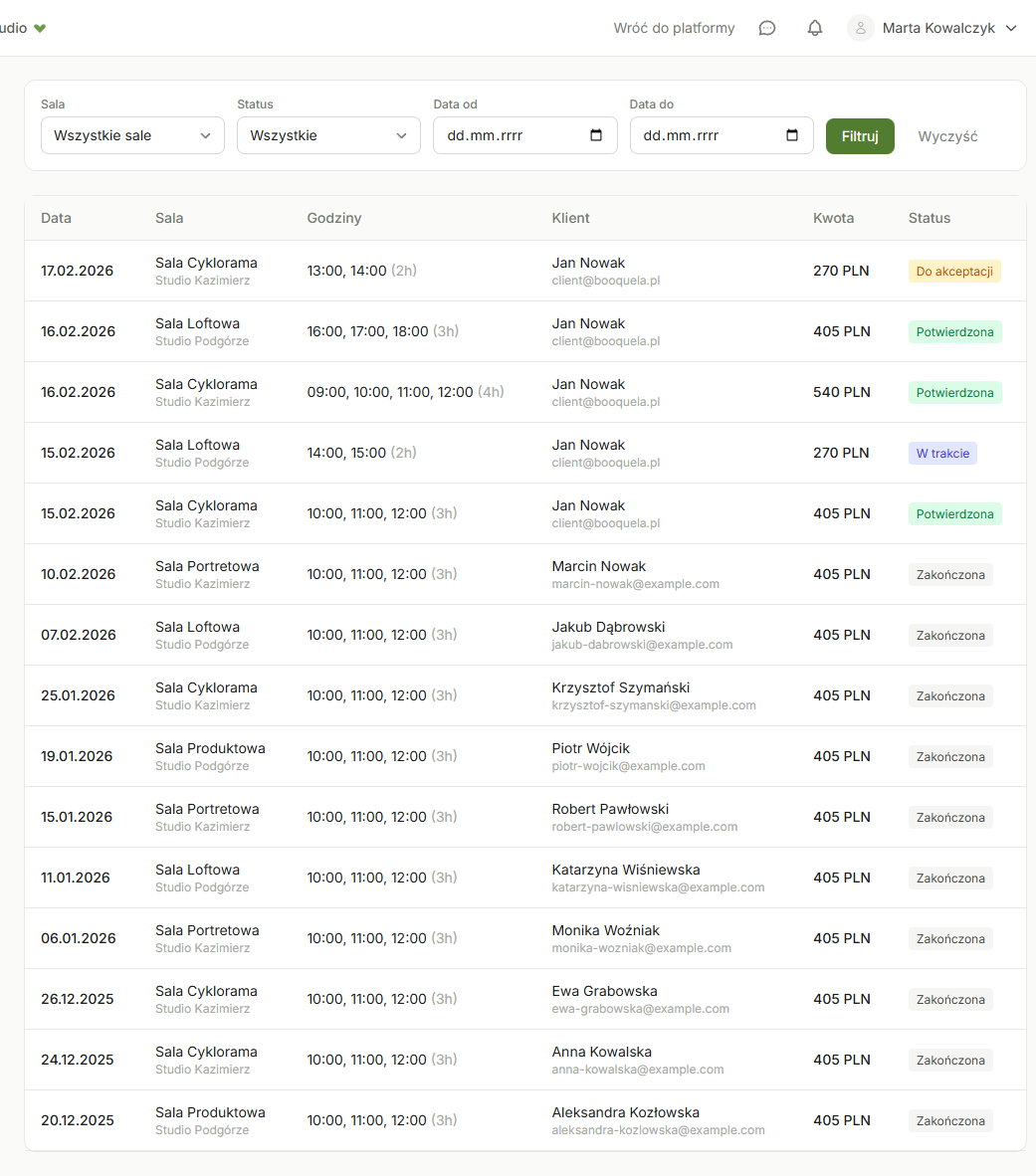
With many bookings, filters help you quickly find what you're looking for:
- Status - show only pending, confirmed, in progress, completed, or cancelled
- Room - filter by a specific room (useful when you have multiple rooms)
- Period - select a date range, e.g., "this week" or "last month"
Example: You want to check how many sessions took place last month in the cyclorama room. Select status "completed", room "cyclorama", and set the date range to last month.
Information in the table
Each row contains: client name, room name, date, booked hours, status, and amount. Click a row to go to the booking details.
Quick actions
Directly from the list you can:
- Approve a booking that's awaiting approval
- Decline a booking you don't want to accept
- Go to details to see full information, notes, and history
Who can see bookings?
It depends on the team role. Owner and manager see all bookings. Reception can view bookings but can't cancel them. Technician and cleaning staff see bookings in view-only mode. If a team member is assigned to specific rooms, they only see bookings for those rooms.
Can I export the bookings list?
Currently there's no CSV or PDF export directly from the bookings list. However, you can use iCal export to sync the calendar with an external app. For occupancy reporting, use the Analytics section in the owner panel.
Start your day by reviewing bookings with "pending" status. Quick responses to client requests build trust and increase booking chances.
Was this article helpful?
What could we improve?
Thanks! Your feedback will help us improve this article.