The calendar is your command center - it shows all bookings, blocks, and buffers in one place. A quick glance tells you everything happening in a given week.
Calendar views
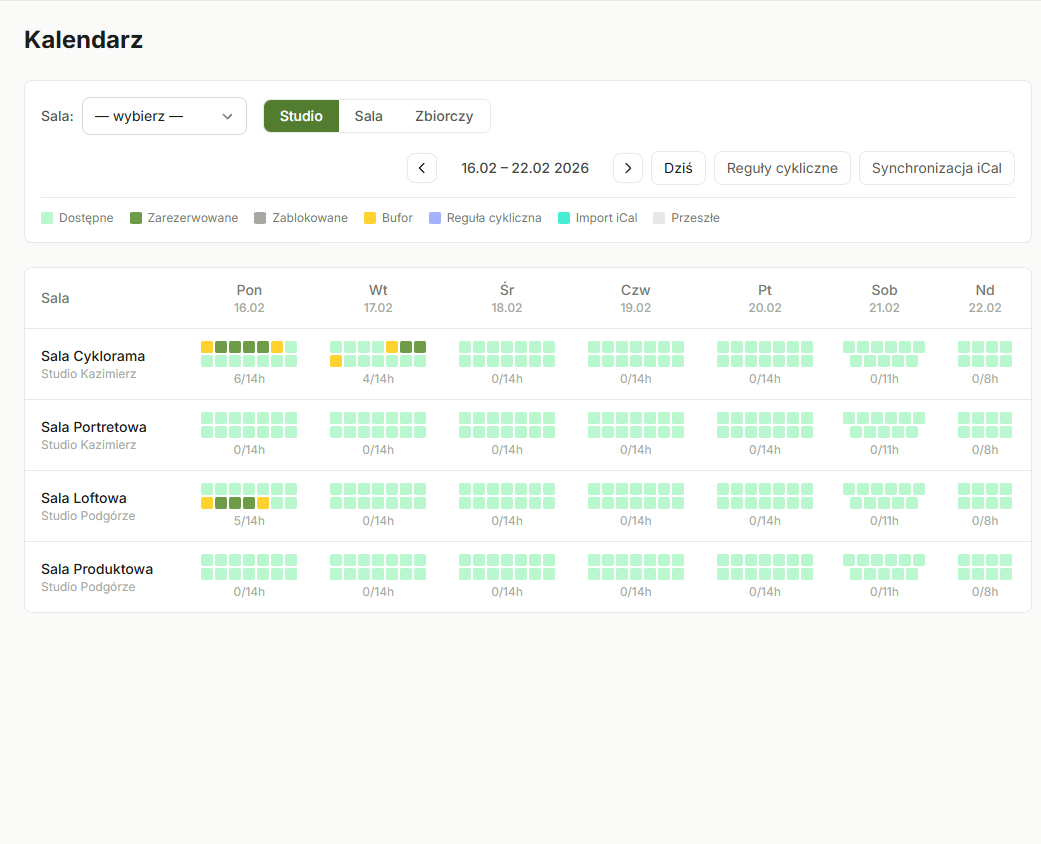
The calendar works in two modes:
- Week view - shows hours from morning to evening, day by day. Here you see exactly when each visit starts, where breaks are, and how much free time remains.
- Month view - gives you a general occupancy overview. Useful when planning longer periods or looking for available days.
Switch views using the buttons at the top of the calendar.
Filtering by room
If you have multiple rooms, the room selector lets you choose a specific room or display all of them at once. This is especially useful when you want to quickly check a room's availability, for example before talking to a client.
What you see in the calendar
The calendar displays three types of blocks:
- Bookings - colored blocks with the client's name (colors depend on booking status - more about this in the calendar colors article)
- Blocks - manually marked unavailable hours (e.g., maintenance, private sessions)
- Buffers - automatic breaks between sessions for cleaning and preparation
Actions from the calendar
Click any booking to go to its details - from there you can approve it, cancel it, or check in the client. Clicking an empty slot lets you quickly create a block - handy when you suddenly need to block off an hour.
What if I don't see all bookings?
Check that you have the right room selected in the selector. If you see "All rooms" and a booking still doesn't appear, it may have an "expired" or "cancelled" status - these bookings may be hidden in the default view.
Open the calendar each morning to quickly review the day's plan. A single glance is enough to know how many clients are coming and whether there are any gaps to fill.
Was this article helpful?
What could we improve?
Thanks! Your feedback will help us improve this article.